
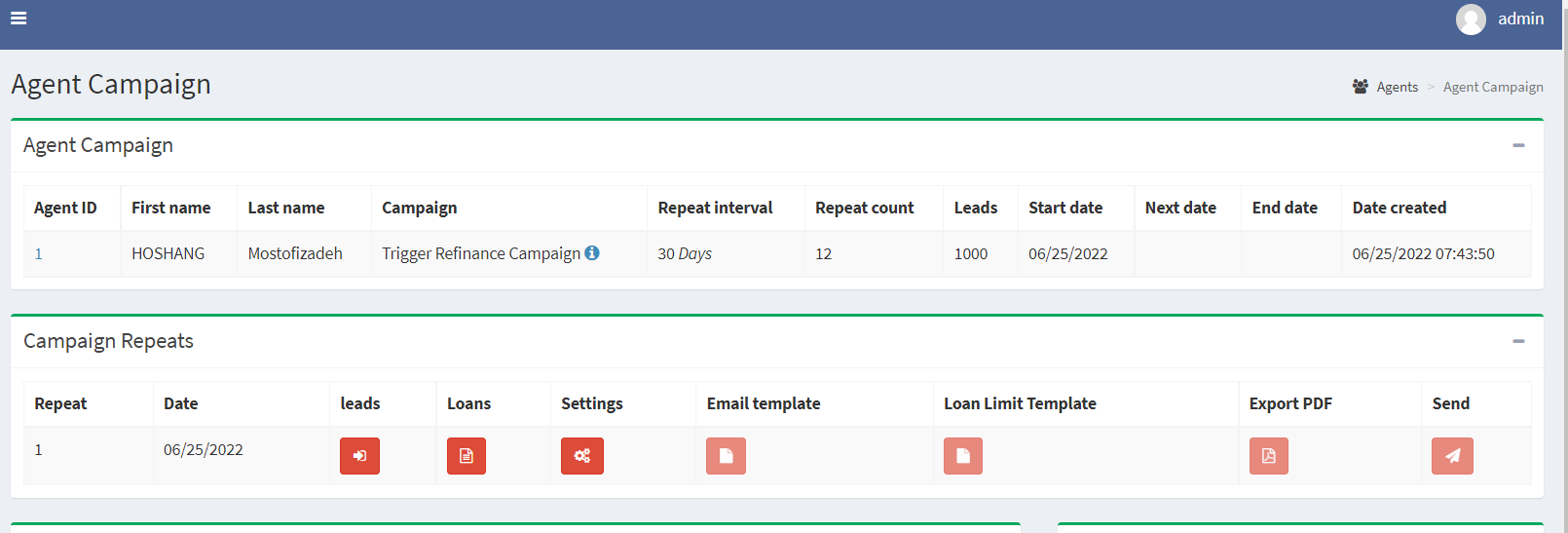
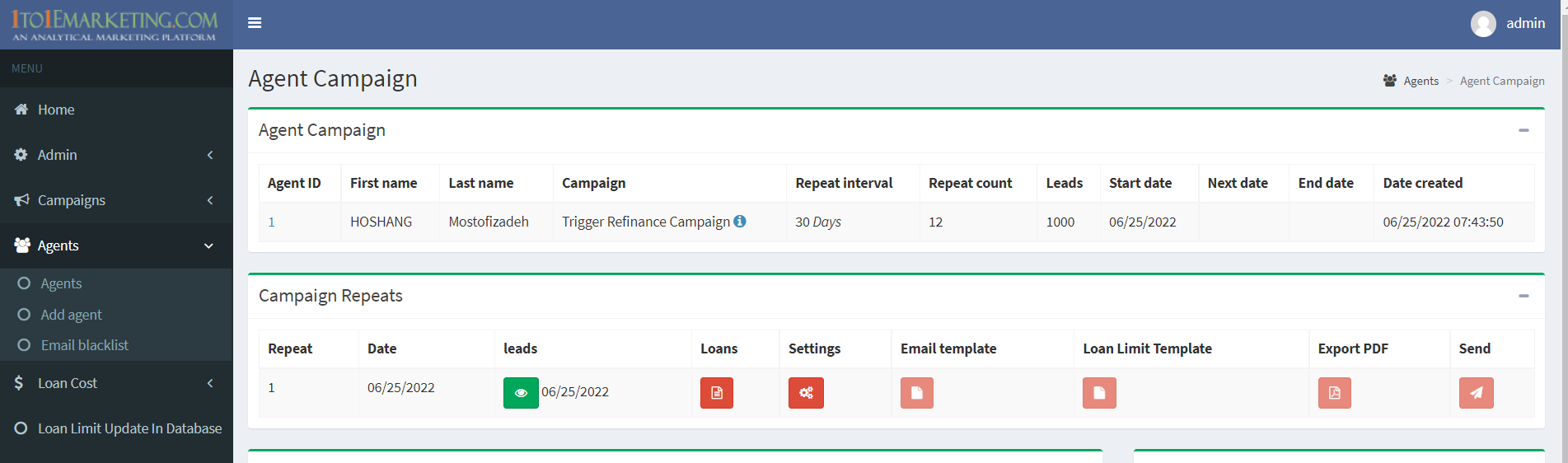
Creating a campaign is sequential. With campaign data imported, the red button above turns green, as in image below. Loans and Setting button also turn green, when loans are imported and data in settings is approved and set
Editor
Creating a new template
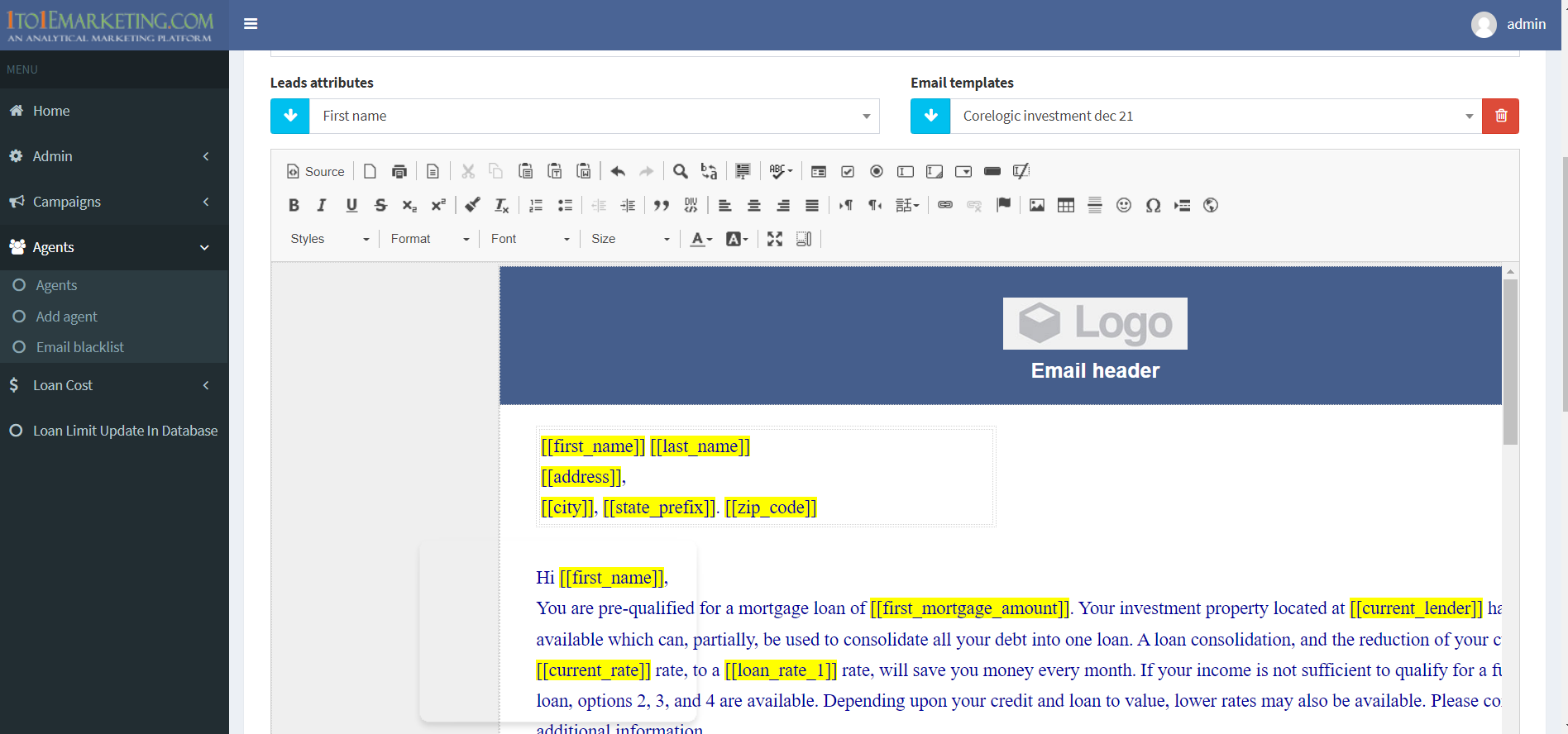
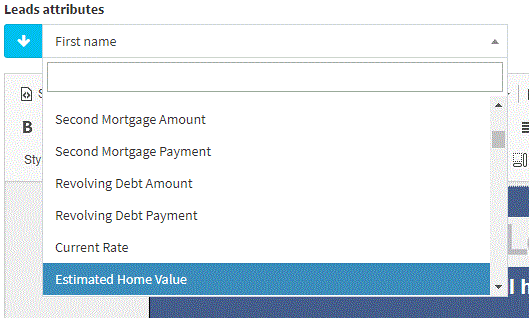
Choose new template from Email templates, upload your logo into Fields library, and place in template. Use the Leads dropdown below, to choose and insert fields into the template for both content and in the loans table
Using a pre-designed template
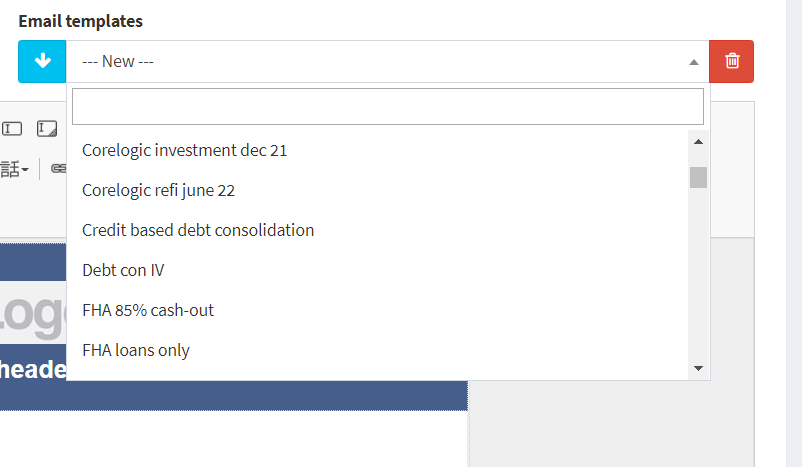
Choose the campaign template from Email templates dropdown. Hit arrow button and import your logo and edit content, once satisfied, name your campaign and hit Set template button